#How can I move and transfer domains?
 FAQ: This is the help centre of ELITEDOMAINS. We are a domain provider that lets you manage domains simply and smartly. We also run a domain catcher, a domain marketplace and attractive landing pages to sell domains automatically.
Contents
For a domain transfer to ELITEDOMAINS, you get the AuthCode from your old provider, add the domain with this code in your account, choose the holder and order the transfer. .de domains move in real time; for some other extensions, the old and the new holder confirm the transfer by email. If you move away from us, you create the AuthCode in your domain portfolio and enter it at the new provider.
Whether you want to move, migrate or transfer a domain, it means the same thing: the domain changes provider. Technically, we distinguish the incoming transfer (transfer in) to ELITEDOMAINS and the outgoing transfer (transfer out) to another provider.
#1) What do I need for a domain transfer?
For each domain you need an AuthCode, a kind of password for the change of provider. You get it from your old provider. How this works at IONOS (1&1), Strato, all-inkl, DomainFactory, Hetzner, GoDaddy and checkdomain is described under Getting the AuthCode from your old provider.
If you change name servers during the move, first create all DNS entries you still need on the new name servers: with our name servers in the Redirector, with external name servers at the operator of those name servers. This also applies to services at other providers, for example a mailbox at an email provider: A, MX, TXT and CNAME entries, including for SPF, DKIM and DMARC. Otherwise website or email fail. Which entries you need and what applies to DNSSEC is described under Changing name servers. We do not offer web hosting or mailboxes ourselves. The prices for the transfer are in the price overview.
#2) How do I move a domain to ELITEDOMAINS?
#Video guide
Our video guide also shows the steps (in German):
#Step 1: Add domains with AuthCode
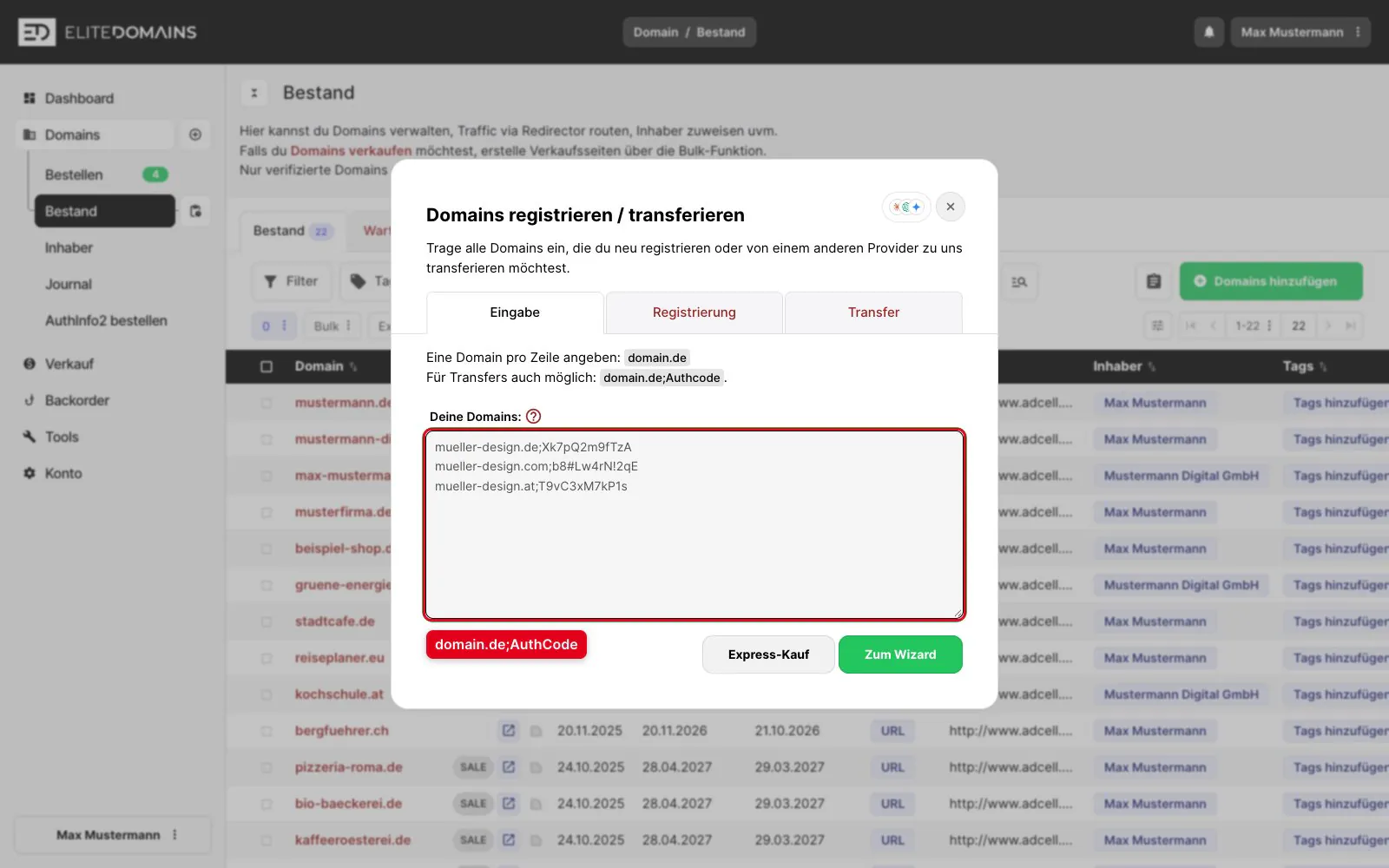
In your domain portfolio, click „Domains hinzufügen“ (add domains) and enter the domain with its AuthCode, in the tab „Transfer“ line by line or in the tab „Eingabe“ (input) as a list with domain.de;AuthCode. With many domains you enter all domains and AuthCodes at once this way (bulk). You can also add the AuthCode later in the wizard.
#Transferring a single domain
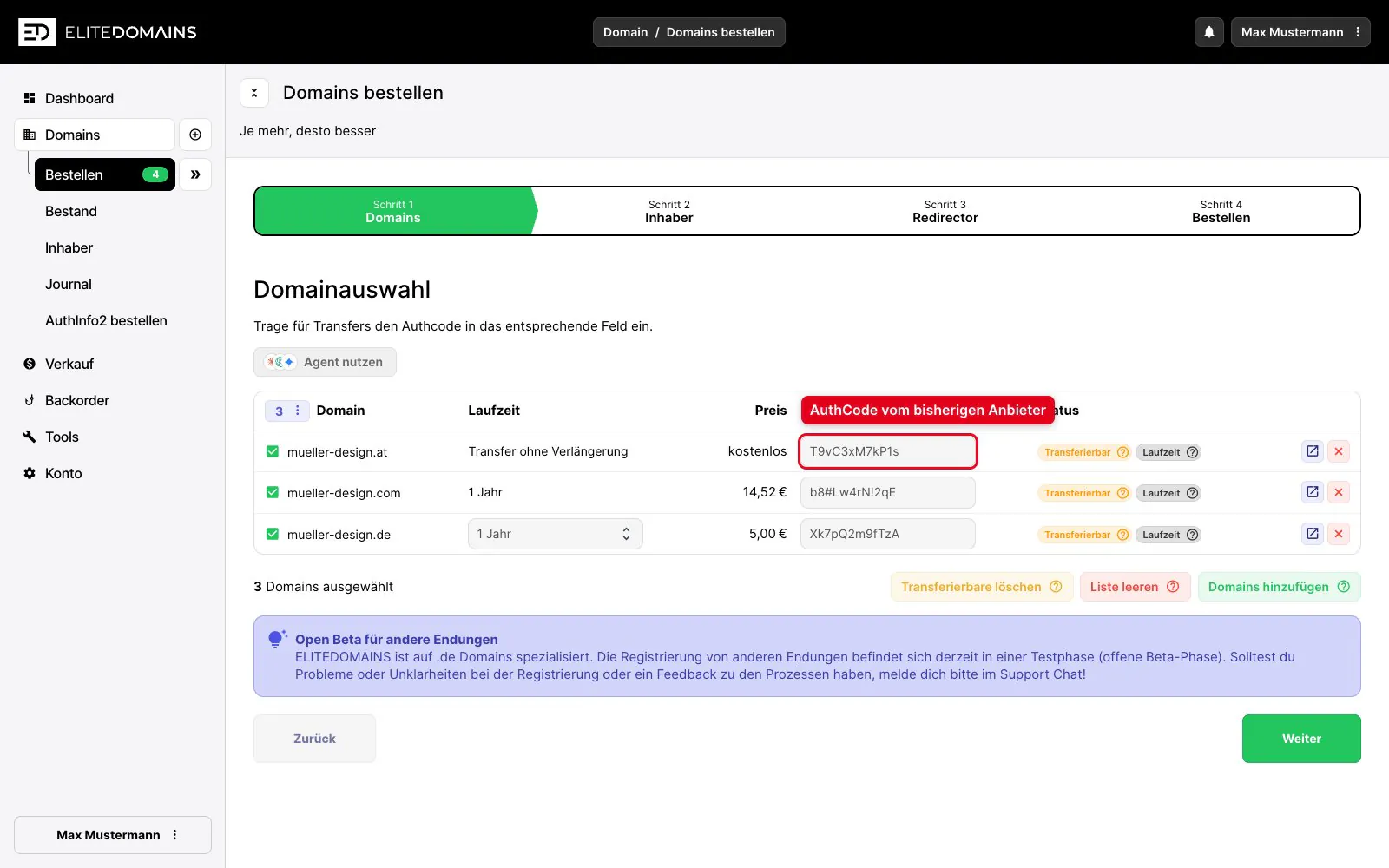
In the first step of the order you see each domain with its AuthCode, term, price and the status „Transferierbar“ (transferable):
#Transferring several domains (bulk)
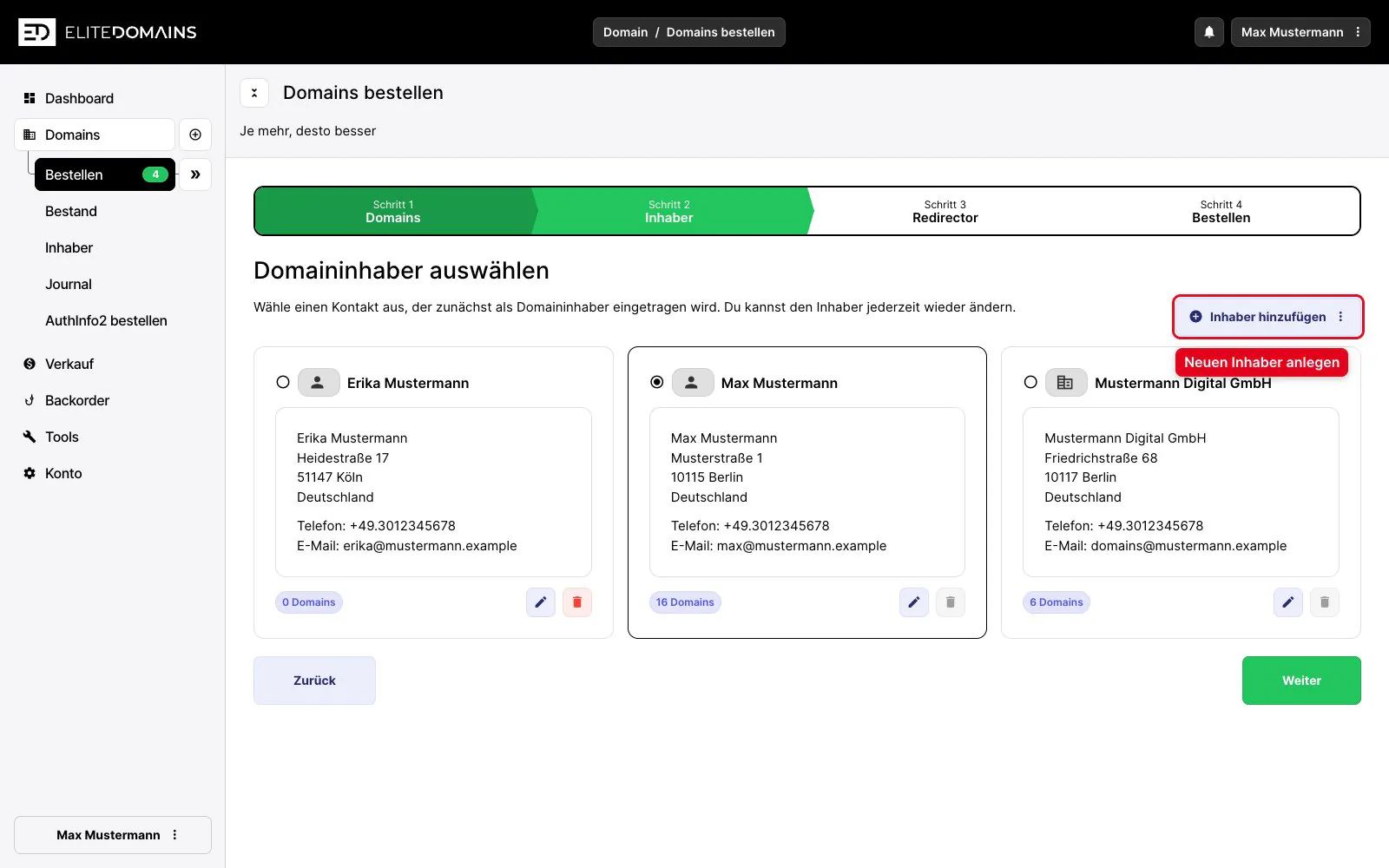
#Step 2: Choose the domain holder
Click „Weiter“ (next) and choose the holder. If you haven't created one yet, create it with „Inhaber hinzufügen“ (add holder).
#Step 3: Connect the domains
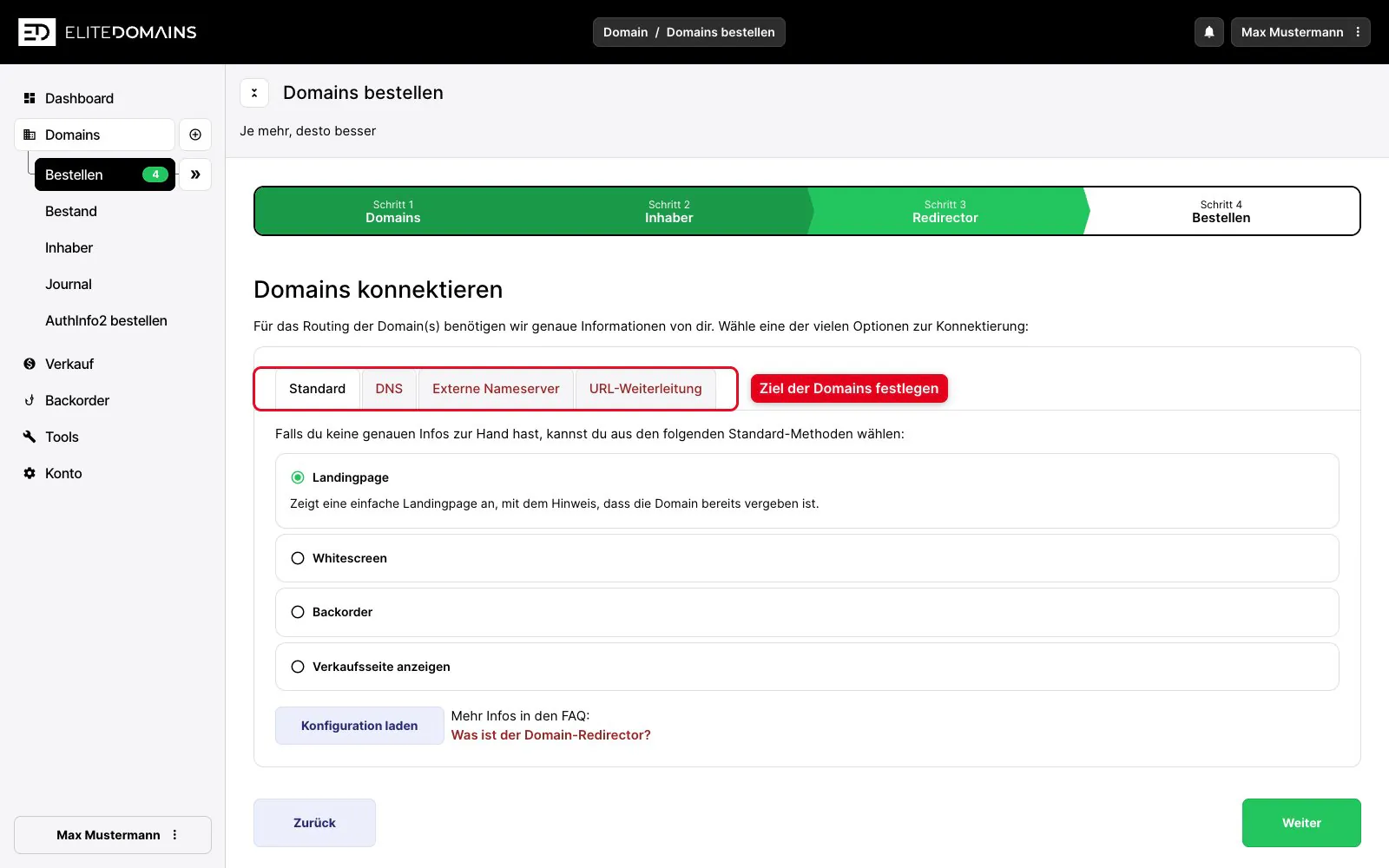
In the Redirector you set where the domains point: to a landing page or sale page, to our name servers, to external name servers or via forwarding to an existing project. If you keep using the domain's website or mailboxes, choose „DNS“ with your entries or external name servers. With landing page, sale page and forwarding you don't set MX entries, and emails no longer arrive. If you change the name servers, note:
- DNS entries: First create all entries you still need on the new name servers, with external name servers at the operator of those name servers, including for services at other providers (Changing name servers).
- Checking name servers: For .de domains, DENIC checks the new name servers during the move. If they don't respond correctly, the domain still moves but keeps the old name servers. So check new external name servers beforehand with DENIC's name server check.
- Old zone: The old provider may only switch off its zone once the waiting period described under Changing name servers is over. It only starts when DENIC's Whois query and the old zone show the new name servers. The same applies to DNSSEC.
#Step 4: Check and send the order
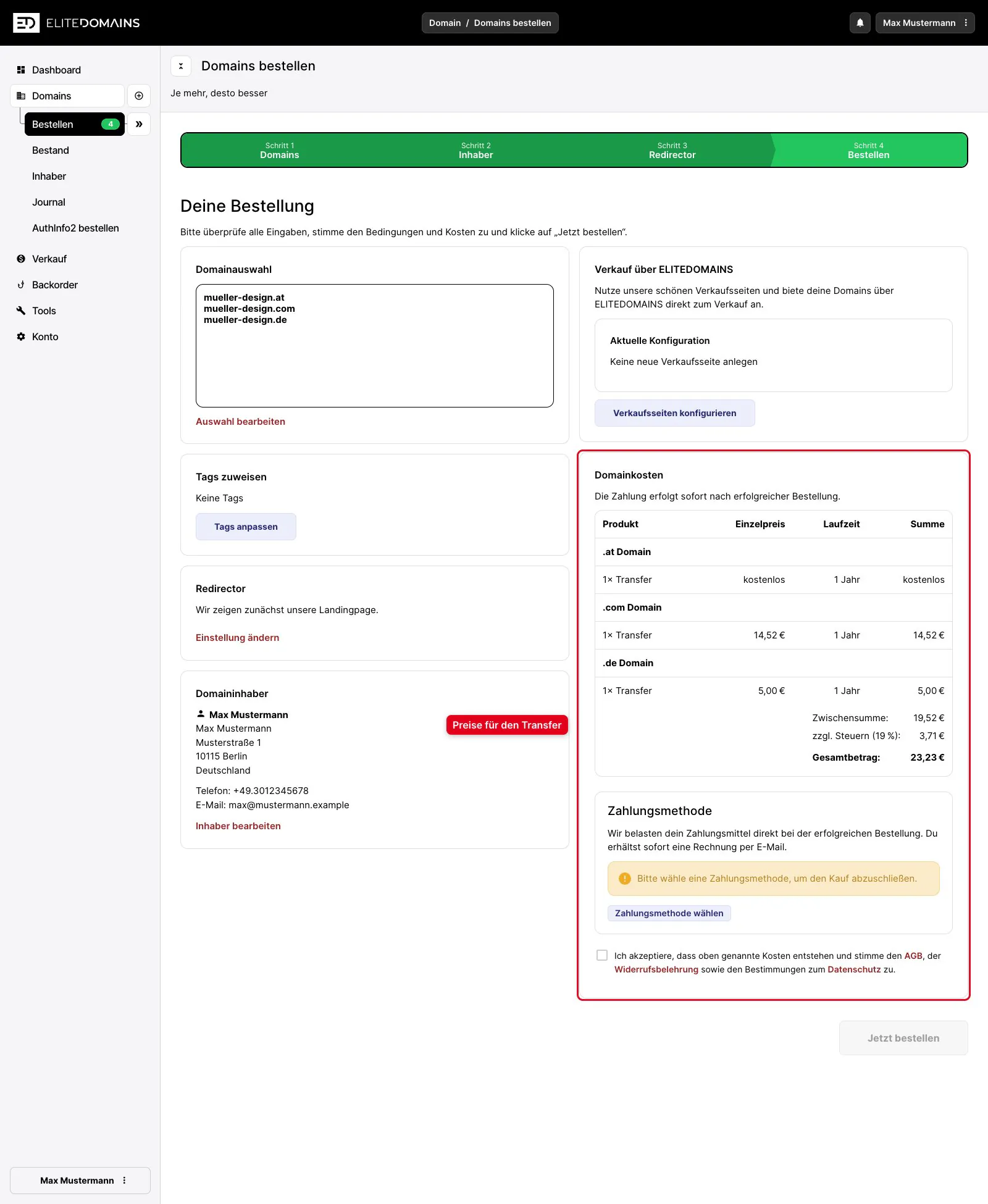
In the summary you can create sale pages or assign tags right away if you like. Under „Domainkosten“ (domain costs) you see the prices. Accept the terms and click „Jetzt bestellen“ (order now).
#Verify the holder
After that you see the domains in your domain portfolio. For some extensions, the registry also requires you to verify the holder.
Once the transfer is complete, the domain appears in your domain portfolio with the new end of term.
#3) Why do I have to confirm a transfer?
For many international extensions, the holder confirms a transfer by email; if the holder changes too, both confirm. Until then the domain is listed under „Wartend“ (pending) with the note „Transfer-Bestätigung ausstehend“ (transfer confirmation pending). Why this is so and what to do if the confirmation doesn't arrive is described under Confirming a transfer.
#4) How do I move a domain from ELITEDOMAINS to another provider?
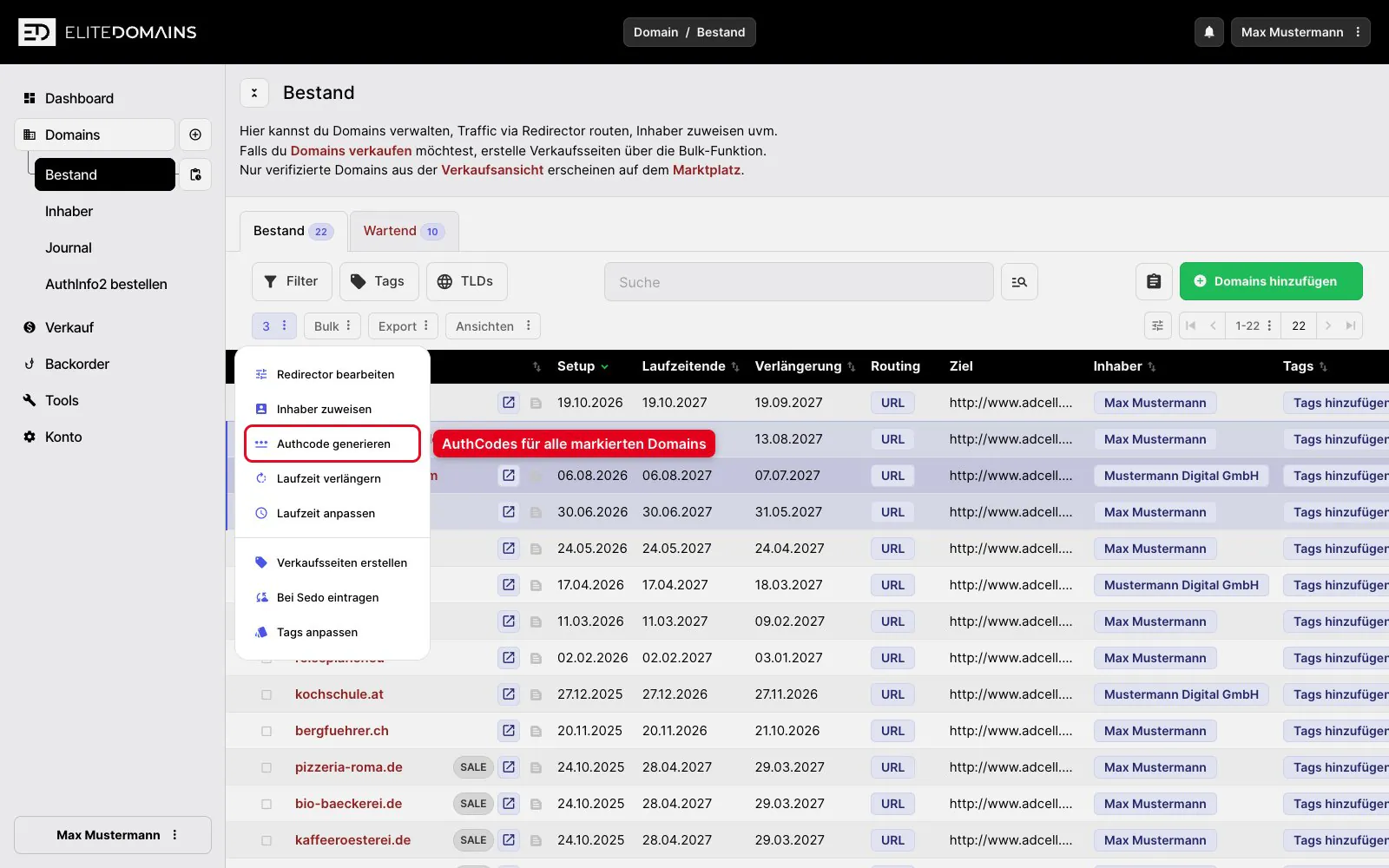
Create the AuthCode on the detail page of the domain, for several domains with a bulk action in your domain portfolio. You enter this code at the new provider in the order. If the detail page shows a lock under „Transfer Lock“, remove it first, otherwise the registry rejects the move.
#5) What is different when moving a .de domain?
- Real time: A .de domain moves immediately as soon as the new provider starts the transfer with a valid AuthCode.
- Valid for 30 days: An AuthCode for a .de domain is valid for exactly 30 days from its creation.
- Change of holder: You move a .de domain with the same holder or change provider and holder in one step.
- AuthInfo2: If the old provider doesn't send an AuthCode, you order an AuthInfo2 code via the new provider. With us you order it here, and we pass the application on to DENIC immediately. A request directly to DENIC is not enough.
DENIC also explains the background of changing provider.
#6) Can ELITEDOMAINS handle the move for me?
Yes. If you have many domains, our transfer service moves your portfolio to ELITEDOMAINS month by month, without you having to plan each transfer yourself.
- What is the AuthCode (AuthInfo) for a domain transfer?
- How can I delete domains or let them expire?
- Which domain contacts (handles) do domains have?
- What is the HOLD status for domains?
- Domain life cycle: when deleted domains become free
- How do I manage domains with tags, filters and notes?
- What are premium domains and why are they more expensive?
- Moving a domain: AuthCode at IONOS, Strato & co.
- How can I register domains?
- How can I rescue a .de domain?
- What is a RESTORE order for deleted domains?
- What is the Redemption Grace Period (RGP) for .de domains?
- What is the difference between ccTLD, gTLD and newTLD?
- Why do I have to confirm a domain transfer?
- How does the transfer service for domains work?
Last updated on 28/11/2026 at 21:10
Let's go!
Create your account now
Register your next domain with us and compare us with your current provider. The account is free.
Join for free now