#How do I move my domain from IONOS, Strato, all-inkl and co.?
 FAQ: This is the help centre of ELITEDOMAINS. We are a domain provider that lets you manage domains simply and smartly. We also run a domain catcher, a domain marketplace and attractive landing pages to sell domains automatically.
Contents
For the domain transfer you need the AuthCode from your old provider. At IONOS (formerly 1&1) you remove the transfer lock and display the code in your account; at Strato you cancel with „Anbieter wechseln“ (change provider) and get it by email; at all-inkl you apply for the change of provider (KK); at DomainFactory and Hetzner you cancel for a change of provider; at GoDaddy and checkdomain you release the domain for the move in your account. Never choose the simple cancellation, because then the domain is deleted. You then enter the AuthCode in the domain transfer to ELITEDOMAINS.
These providers mainly serve German-speaking customers; their menus and help pages are quoted in German.
#1) How does a domain move work?
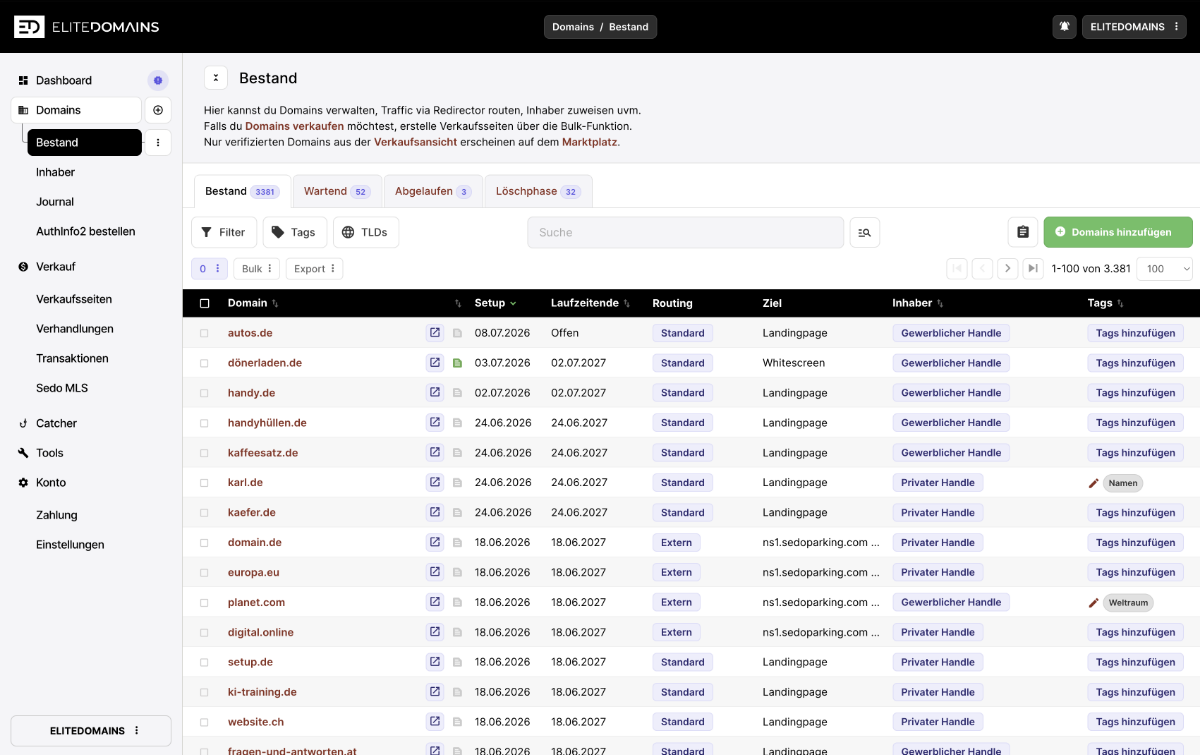
A move has two sides. At your old provider you get the AuthCode, which proves that you are the holder. At ELITEDOMAINS you add the domain with this code, choose the holder and set where the domain points. The steps with us are shown in the domain transfer guide.
Web space and mailboxes don't move with it, because we offer neither web hosting nor mailboxes. If you keep both at the old provider, you enter its servers in the Redirector before the move, as DNS entries or as external name servers. What to watch out for is described in the next section.
#2) Where do I get the AuthCode at my provider?
At most providers the AuthCode has another name, for example authorisation code, AuthInfo, transfer code or EPP code. This is how you get it:
| Provider | Way to the AuthCode | Caution |
|---|---|---|
| IONOS (1&1) | Remove transfer lock, display code in the account | – |
| Strato | Cancel with „Anbieter wechseln (Providerwechsel)“ | don't choose „NIC Löschung“ |
| all-inkl | „Domain zu einem anderen Provider umziehen (KK)“ | don't choose „Domain kündigen“ |
| DomainFactory | Cancel for a change of provider | only online or in writing |
| Hetzner | konsoleH: cancel „zu einem anderen Provider“, Robot: tab „Auth-Code“ | code only after cancellation |
| GoDaddy | "Transfer to another registrar" | Domain Privacy is switched off |
| checkdomain | „Konfiguration“ → „Providerwechsel“ | – |
If your provider is not on the list, search its help for "AuthCode" or "change of provider". Never cancel the domain there without the change-of-provider option, otherwise it is deleted.
#3) What do I need to consider before changing name servers?
If you keep the old provider's name servers as external name servers, all entries stay as they are. But first ask the old provider whether it will keep running the DNS zone after the move. If it belongs to the cancelled domain contract, it often switches it off, and website and email fail. If it keeps running it and the domain is signed with DNSSEC, you enter its key in the Redirector (DNSSEC with external name servers).
If you change the name servers, to ours or to those of another DNS service, first take over all entries you still need. Note them down at the old provider before you move:
- Website: A and AAAA entries of the web server.
- Email: MX entries of the mail servers and the TXT and CNAME entries for SPF, DKIM and DMARC. If SPF or DKIM are missing, many recipients reject your outgoing emails.
- Other services: TXT entries with which services such as Google or Microsoft verify the domain.
- Limits: Our name servers support the DNS types A, AAAA, CNAME, MX, NS and TXT, and you set up to 120 entries per domain. If you need other types, for example SRV entries for telephony (SIP) or chat, or more than 120 entries, use external name servers.
After the change, resolvers keep asking the old name servers until the validity (TTL) of the old NS entries has expired, usually up to two days. The old zone must keep answering during this time. If the old provider switches it off with the move, you switch the name servers at that provider to the new DNS service beforehand. Also have the NS entries in its zone changed to the new name servers, otherwise resolvers keep caching the old ones again. If the domain is signed, remove the old key entry (DS) before this switch and wait for its validity to expire, as described in step 1 below. Only move the domain once the validity of the old NS entries has expired since this switch, at the earliest two days later. The waiting period of the key entry is not enough for this.
For DNSSEC, proceed as follows with every change of name servers, even if the domain is not signed yet. Step 1 is then skipped:
- If the domain is signed, have the old provider remove the key entry (DS) at the registry but keep signing the zone. Wait until the validity (TTL) of the old key entry has expired, depending on the extension a few hours to a day. If the provider switches off the zone's signature immediately with "DNSSEC off", the domain is unreachable for some visitors already during this waiting period. If in doubt, ask the provider.
- Move the domain without a key: with our name servers you switch off DNSSEC in the Redirector under „DNS“; with external name servers you don't enter a key yet. Never take the old provider's key over to new name servers.
- After the move, check in the registry's Whois query whether the new name servers are entered. If the old zone still answers, its NS entries must also show the new name servers. From the moment both are correct, wait at least two days, longer if the validity (TTL) of the old NS entries is longer. Only then switch DNSSEC back on with us or enter the new DNS service's key in the Redirector. Until then resolvers may still have cached the old name servers.
If you skip a step, validating resolvers reject the answers, and website and emails are unreachable for some visitors.
#4) Where do I get the AuthCode at IONOS (1&1)?
At IONOS the AuthCode is called „Autorisierungscode“ (authorisation code). You find it in your account:
- Open „Domains“ and there the page „Umzug & Verlängerung“ (transfer & renewal).
- Select the domain and deactivate the option „Domain-Umzugssperre“ (domain transfer lock).
- Click „Autorisierungscode anzeigen“ (show authorisation code).
IONOS requests the code from the registry, so it can take a few minutes. For extensions such as .com, .net and .org, the transfer lock is active by default. Details are in the IONOS help (in German).
#5) Where do I get the AuthCode at Strato?
Strato only sends the AuthCode for domains that have been cancelled. So cancel in the customer login under „Ihr Vertrag“ → „Kündigung und Storno“ (your contract → cancellation) and choose „Anbieter wechseln (Providerwechsel)“ (change provider) for the domain.
Strato sends the code by email to the domain holder, automatically 30 days before the cancellation date. If you need it earlier, request it under „Domains“ → „Domainverwaltung“ with „Authcode anfordern“ (request auth code). More in the Strato help (in German).
#6) Where do I get the AuthCode at all-inkl?
At all-inkl you apply for the move in the Members Area under „Domainverwaltung“ → „Domainliste“ → „Bearbeiten“. There you choose „Domain zu einem anderen Provider umziehen (KK)“ (move domain to another provider). all-inkl then notes your wish to change provider.
According to all-inkl, how you then get the AuthCode depends on the extension. The steps are in the all-inkl guide (in German); if in doubt, all-inkl's support helps.
#7) Where do I get the AuthCode at DomainFactory?
At DomainFactory you cancel the domain for a change of provider, not as a normal cancellation. You do this in the customer menu under „Kundenverwaltung“ → „Online-Kündigung“ (online cancellation), provided you have activated online cancellation. Otherwise you cancel in writing with the signed form by post or fax; DomainFactory does not accept cancellations by email or phone. The deadline is based on when DomainFactory receives the cancellation. Details are in the DomainFactory help (in German).
You often receive the AuthInfo automatically with the cancellation confirmation. It is valid for 30 days and only for this one domain. If it doesn't arrive, ask DomainFactory's support before the cancellation takes effect.
#8) Where do I get the AuthCode at Hetzner?
In konsoleH you create the code via the cancellation:
- Select the domain and click „Vertrag“ → „Kündigung“ (contract → cancellation).
- Choose the date and the option „Die Domain wird zu einem anderen Provider gezogen.“ (the domain is moved to another provider).
- After the cancellation you find the auth code under „Vertrag“ → „Accountinformation“.
In the Domain Registration Robot you open the domain under „Domains“ and the tab „Auth-Code“; for .de domains you create it there. The code is valid for 30 days for .de domains and 40 days for .eu domains. If you have no access to the account, you send Hetzner a letter signed by the holder with a copy of ID or a commercial register extract. Details are in the Hetzner help (in German).
#9) Where do I get the AuthCode at GoDaddy?
At GoDaddy the AuthCode is called "authorization code":
- Open your Domain Portfolio and select the domain.
- Under "Transfer", choose "Transfer to another registrar" and then "Continue with transfer".
- GoDaddy shows you the code and sends it to the holder's email address.
GoDaddy removes the lock and switches off Domain Privacy so that the contact details pass to the new provider. Domains from a package can be transferred 120 days after registration at the earliest. Details are in the GoDaddy help.
#10) Where do I get the AuthCode at checkdomain?
At checkdomain you release the domain in the customer area:
- Under „Domains“, click „Konfiguration“ (configuration) for the domain and then „Providerwechsel“ (change of provider).
- Confirm the release with your customer password.
- checkdomain shows the code and sends it by email.
For extensions without an AuthCode procedure, checkdomain requires a form by email, fax or post. More in the checkdomain help (in German).
#11) What applies to .com, .net and .org domains?
ICANN's rules apply to extensions such as .com, .net and .org. A domain only moves if it has been registered for at least 60 days and has neither moved nor changed holder in the last 60 days. If you want to change holder and provider, move the domain first and change the holder afterwards. In addition, the transfer lock at the old provider must be off, otherwise the registry rejects the move.
#12) What do I do if the old provider doesn't send an AuthCode?
For .de domains you order an AuthInfo2 code via the new provider, i.e. from us. We pass the application on to DENIC immediately; a request directly to DENIC is not enough. The code comes by letter to the holder's address and replaces the old provider's AuthCode.
If you move many domains at once, our transfer service plans the moves for you.
- What is the AuthCode (AuthInfo) for a domain transfer?
- How can I delete domains or let them expire?
- Which domain contacts (handles) do domains have?
- What is the HOLD status for domains?
- Domain life cycle: when deleted domains become free
- How do I manage domains with tags, filters and notes?
- What are premium domains and why are they more expensive?
- How can I register domains?
- How can I rescue a .de domain?
- What is a RESTORE order for deleted domains?
- What is the Redemption Grace Period (RGP) for .de domains?
- What is the difference between ccTLD, gTLD and newTLD?
- Moving and transferring a domain: transfer guide
- Why do I have to confirm a domain transfer?
- How does the transfer service for domains work?
Last updated on 28/11/2026 at 21:10
Let's go!
Create your account now
Register your next domain with us and compare us with your current provider. The account is free.
Join for free now